For every Windows sign-in:
Even if a password is stolen, your computers stay protected: console and Remote Desktop (RDP) sign-ins require a 6-digit code, while malicious IP addresses are blocked automatically.
Free for up to 10 users and 5 computers · No credit card required · Setup in about 4 minutes

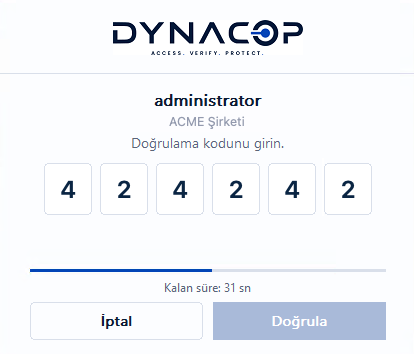

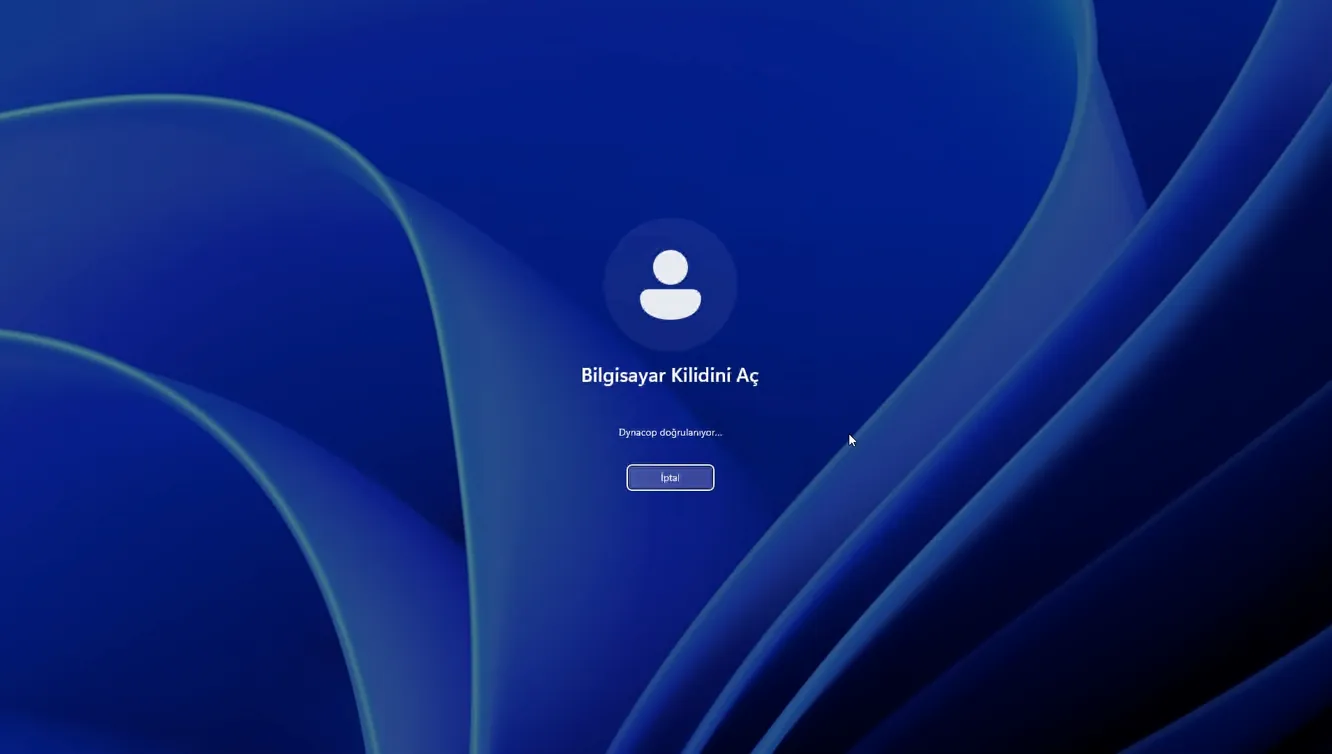
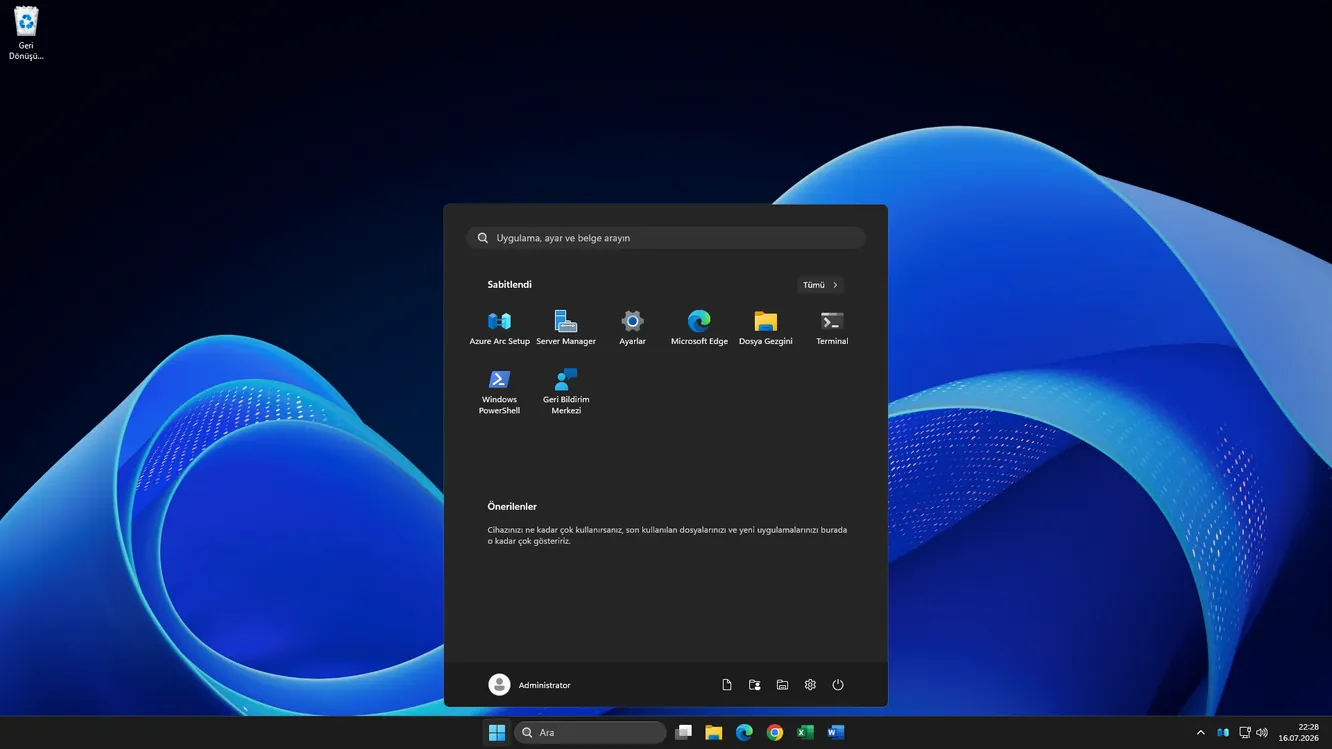
Protect Windows sign-ins in three simple steps About 4 minutes
Install Dynacop once; each user enrolls their own phone through an invitation link.
Install Dynacop
Run the installer, then enter the registration code from the admin panel to connect the machine to your workspace.
DYN-4242-ACMEInvite your team
Send an email invitation; each user enrolls their own phone. Any TOTP app works, including Google Authenticator.
Protect every sign-in
MFA is active from the next Windows sign-in: after entering their password, users verify with the 6-digit code on their phone. That's it.
Designed for centralized deployment via MSI, GPO, or RMM · Users enroll their own phones · Active from the next sign-in
Attacks continue — even while you're on this page.
Every movement below reflects live password attacks against machines running Dynacop Shield. Shield automatically blocks offending IP addresses directly on each machine — even while you sleep.
Thresholds are configurable per resource · your real users' IPs and your allowlist are never blocked · persistent attackers get blocked for up to 30 days.


Monitors Windows security events · Groups attempts by IP · Blocks them in the machine's local firewall
These figures are not sign-in code attempts. They represent external password attacks against machines running Dynacop. IP addresses are masked for privacy.
One product. Three core concepts.
Who is signing in, what access they have, and which device they can reach — Dynacop is built around these three questions.
Person
The real user behind the Windows account. Even on a shared Administrator account, the person signing in verifies their identity from their phone.
Access
Defines which resources a person can access. Grant access by invitation, set an expiry, or revoke it in one click.
Resource
The protected Windows device: a server, an office PC, or an internet-facing RDP machine.
Even the panel menu is built around these same three concepts.
How Dynacop helps you

All your customers. One panel.
- No separate setup for each customer — machines connect in minutes using a registration code
- Your technicians do not consume licenses
- A ready-to-send weekly admin report for every customer
- Customers can see who accessed what in their own panel — building trust
A separate workspace per customer · your first 10 users and 5 computers free.

AdministratorAyşe Yılmaz✓muhasebeMehmet Kaya✓Shared accounts are now tied to real people.
- On the shared "Administrator" account, you know who signed in
- Installed in 4 minutes — no IT expert needed
- A departing employee's access is gone in one click
- Your first 10 users are free — no credit card required
Your first 10 users and 5 computers are free.

Take the risk out of internet-facing RDP.
- Shield blocks password-guessing attackers on the machine itself
- Time-limited (JIT) access and exemption policies
- Person-level audit trail — even on shared accounts
- Feed your firewall with the Threat Feed API
Fits MSI · GPO · RMM deployment — installers are signed.

Completely free for home use.
- Protect your own PC: even if your password is stolen, nobody gets in
- Up to 5 family computers — free forever
- See who signed in and when on your children's computers
- No credit card, no "upgrade" pressure
The authenticator app on your phone is enough — including Google Authenticator.
Simple pricing. One plan.
No confusing tiers — start free, then pay $2 per user as you grow.
- All core features — MFA + Shield
- No credit card required
- No time limit
- Unlimited machines and accounts — we only count licensed users
- Panel administrators and MSP technicians are free
- MSP multi-customer console and weekly reports
- Threat Feed API included
- No commitment — usage is counted at the end of each month, cancel anytime
Digitally signed installer · Secure payments via Stripe · Support in Turkish and English
Frequently asked questions
Doesn't Windows already support MFA at sign-in?
For password-based local accounts and RDP, Microsoft offers no built-in second verification step. (Windows Hello is a device PIN, not a second factor; Entra authentication is for corporate cloud accounts.) Dynacop fills exactly this gap: it adds a 6-digit code to console and RDP sign-ins.
Which Windows versions are supported?
Windows 10/11 and Windows Server 2012 and later. Compatible with RDP and NLA (Network Level Authentication); also works on machines that are not domain-joined.
What happens if the internet connection is unavailable?
Sign-ins keep working: codes can be verified on the machine itself (offline access). You also decide at setup what the door should do while offline — stay open (fail-open) or stay locked (fail-closed). We are one of the few products that asks this explicitly. The full behavior: what happens when the internet is down?
Do I need Active Directory or an IT specialist to install it?
No. The installer plus a registration code from the panel is enough; it works on non-domain machines too. Your first protected sign-in takes about 4 minutes.
Will I be locked out if I lose my phone?
No. You have single-use recovery codes, and an admin can reset verification from the panel. Nobody stays permanently locked out.
Does Dynacop see my password?
No. Your password stays in Windows and is never sent to Dynacop; Dynacop only verifies the second step (the 6-digit code).
Do I have to install a dedicated authenticator app?
No. Google Authenticator, Microsoft Authenticator, 1Password… any app that generates 6-digit codes (TOTP) works. We don't force a proprietary app.
Can I deploy Dynacop at scale using MSI, GPO, or RMM?
Yes. The installer is a standard MSI package; deploy silently with GPO or your RMM tool. Each machine joins the right workspace automatically via the registration code.
Will Windows sign-in still work if I uninstall Dynacop?
No. On removal, Windows returns to its standard sign-in flow. The design principle throughout is "never lock out first" — no failure state leaves you outside your computer.
What exactly happens when Dynacop blocks an IP address?
It's more than a simple counter: on each machine, failed attempts are aggregated per IP and pass through a two-layer analysis — burst intensity within a short window AND cumulative persistence, so low-and-slow bots get caught too. An offending IP is blocked with a rule in the machine's local firewall; the duration escalates from 15 minutes up to 24 hours on repeat, and persistent attackers stay blocked for up to 30 days. Your traffic is never routed through our cloud — the block is enforced on the protected resource itself, and IPs on your safe list and your real users' IPs are never blocked. You can review blocked IP addresses in the panel.
What data do you store?
Only the minimum required: name, email address, and sign-in and attack logs. Passwords are never stored. See our Security page for details.
Your first 10 users are free.
Protect your first Windows sign-in in about 4 minutes.
No credit card required · No minimum purchase